-
General questions
- How do I run ClipAI on macOS?
- How do I run several copies of the program on one PC with different settings?
- How do I update ClipAI to the latest version?
- How do I make a generated article more unique?
- How do I save an article with images as an HTML file?
- How do I save an article with images as a Word document (doc/docx)?
- How do I improve the quality of articles?
- How do I make the program faster?
- What languages does ClipAI support?
- What is the maximum number of threads ClipAI can use?
- Which AI should I choose for writing articles?
- Operating modes at a glance
- Do I need to buy ZennoPoster to use ClipAI?
- Do I need to pay for anything else to use ClipAI?
- Getting started: how do I launch ClipAI, set it up and write my first articles?
- Don’t search engines penalize sites with generated content?
- How is ClipAI better than its competitors?
- Show other articles (2) Collapse articles
-
Operating modes
-
-
- How do I automatically add links to specific anchor texts in an article? (Interlinking)
- How do I add a table of contents to an article?
- How do I write thousands of articles (article titles) on one “broad” topic?
- How do I make a generated article more unique?
- How do I specify keywords for an article correctly?
- How do I reduce logical repetitions?
- How do I save an article with images as an HTML file?
- How do I save an article with images as a Word document (doc/docx)?
- How do I improve the quality of articles?
- How do I reduce the “spamminess” of a text?
- Don’t search engines penalize sites with generated content?
- My pages have been hit by a search engine penalty! What should I do?
-
-
-
Input settings
-
- How do I fix errors in a text automatically? | How do I turn auto-generated subtitles into an article?
- How do I add my own sections to an article (for example, an FAQ or a table)?
- How do I set up ClipAI Plus correctly?
- How do I rewrite a text while changing something in it?
- What uniqueness level should I use for rewriting?
- Text style
-
- “Error while generating an image or uploading it to your server. Continuing without images.”
- How do I assign different categories to different articles?
- How do I add images to a Telegraph post?
- How do I edit the text of a page that ClipAI published on Telegraph? | How do I log in to an existing Telegraph account?
- How do I set up automatic publishing to a WordPress site?
- How do I set up auto-publishing to Telegra.ph with ClipAI?
- How do I publish different articles to different sites?
- How do I save an article with images as an HTML file?
- How do I save an article with images as a Word document (doc/docx)?
-
Troubleshooting
-
- “Unable to access non-serverless model” in Together.AI: what does it mean?
- “Sorry, you are not allowed to create posts as this user.”
- “The AI refused to generate the article, trying again. Detailed response: ‘(...)’”
- “200 messages per day limit!” or “Too many API requests per day”
- “Part of the program could not be loaded”
- “Frequent topic repetition detected: X items. Y items specified.” What should I do?
- “Error 401” when publishing to WordPress
- “Encoding error”
- “Error while executing the request. Check your internet connection. (...)”
- “Error while generating an image or uploading it to your server. Continuing without images.”
- “An error occurred while loading the lists. This path format is not supported.”
- “An error occurred. Received an empty response”
- “You most likely do not have access to this model. Stopping the template. Details: The model (...) does not exist or you do not have access to it.”
- “Too many API requests per minute. Waiting 20 seconds and trying again.”
- “The specified category was not found. Continuing without it.”
- How do I fix a 503 error?
- Error “Failed to create a task for ClipAI Plus”
- Google Gemini quota error
- Publishing to WordPress: “Received an empty response from the WordPress site” (or a similar error) in the log, or articles are not published but there are no errors
- Show other articles (4) Collapse articles
-
- “No connection to the authorization server or your IP is blocked” in ZennoPoster or ZennoBox
- “Error obtaining a license. The product being installed has not been purchased”
- I press “Start” but nothing happens.
- ZennoPoster or ZennoBox does not start
- Several identical articles are written, or “Maximum threads” changes to “1” after ClipAI starts
-
- “Frequent topic repetition detected: X items. Y items specified.” What should I do?
- How do I add my own sections to an article (for example, an FAQ or a table)?
- How do I add a table of contents to an article?
- How do I make a generated article more unique?
- How do I reduce logical repetitions?
- How do I improve the quality of articles?
- How do I reduce the “spamminess” of a text?
- Which AI should I choose for writing articles?
- What uniqueness level should I use for rewriting?
- The h1 tag is not added to the article
- Don’t search engines penalize sites with generated content?
- My pages have been hit by a search engine penalty! What should I do?
-
- ZennoPoster/ZennoBox freezes
- How do I remove the numbers at the end of file names?
- I press “Start” but nothing happens.
- Google Gemini quota error
- Several identical articles are written, or “Maximum threads” changes to “1” after ClipAI starts
- Several articles are written as one
- The balance of a paid neural network is used up too quickly
- My pages have been hit by a search engine penalty! What should I do?
-
-
ClipAI Plus
-
Other questions
- How do I summarize an article, or rewrite it with a different length?
- How do I add another neural network to ClipAI?
- How do I use ClipAI with local AI models (LLMs)?
- How do I use ClipAI through the API?
- How can I use ClipAI most conveniently when my computer is off, or on different PCs?
- How do I move a ClipAI license to another PC?
- How do I try ClipAI? | Can I get a refund if something doesn’t suit me?
- How do I use ClipAI from another script or program?
- How do I rewrite a text while changing something in it?
- How do I remove the numbers at the end of file names?
- What's new in the latest updates? How often is ClipAI updated?
-
WordPress
- “The web server cannot generate responsive image sizes for this image” in WordPress.
- “Sorry, you are not allowed to create posts as this user.”
- “Error 401” when publishing to WordPress
- “Error while generating an image or uploading it to your server. Continuing without images.”
- “The specified category was not found. Continuing without it.”
- How do I assign different categories to different articles?
- How do I set up automatic publishing to a WordPress site?
- How do I optimize articles published on WordPress for SEO?
- How do I publish different articles to different sites?
- Publishing to WordPress: “Received an empty response from the WordPress site” (or a similar error) in the log, or articles are not published but there are no errors
-
Telegra.ph
-
ClipCloud
“An error occurred while loading lists. This path format is not supported."
This error can occur in ZennoPoster or ZennoBox if the path to a file in the input settings is wrong. For example, with ClipAI, users often mistakenly enter the login details themselves in the “WordPress authorization file” field:

Instead, enter either the path to the file that contains the login details:

Or, if you have only one site, enter the login details in the fields below:
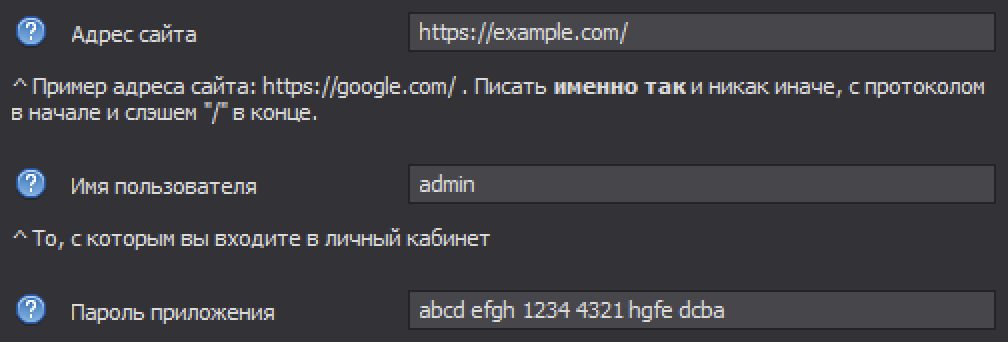
Also check the other input settings for similar errors. If you can’t find the cause, write to us.
If you get the error “An error occurred while loading tables. This path format is not supported.”, check that the folder paths are set correctly in the “Output data” tab of the input settings.
If you get the error “An error occurred while loading lists. Path contains invalid characters.”, check not only the above but also whether your file/folder paths are enclosed in quotes. They shouldn’t be. For example, instead of:
"C:\Users\Administrator\Documents\"
Enter the path without quotes:
C:\Users\Administrator\Documents\
Also, the file/folder path must not contain extra characters. So it’s best not to type or paste the path, but to select it directly in the input settings.
 Russian
 EN